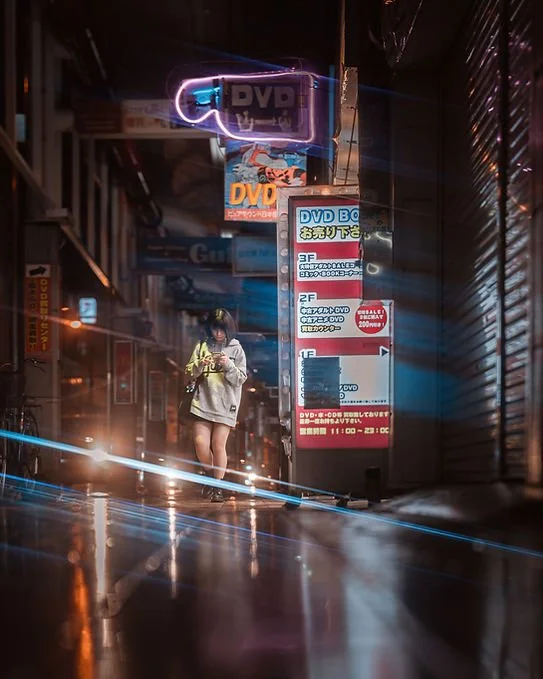
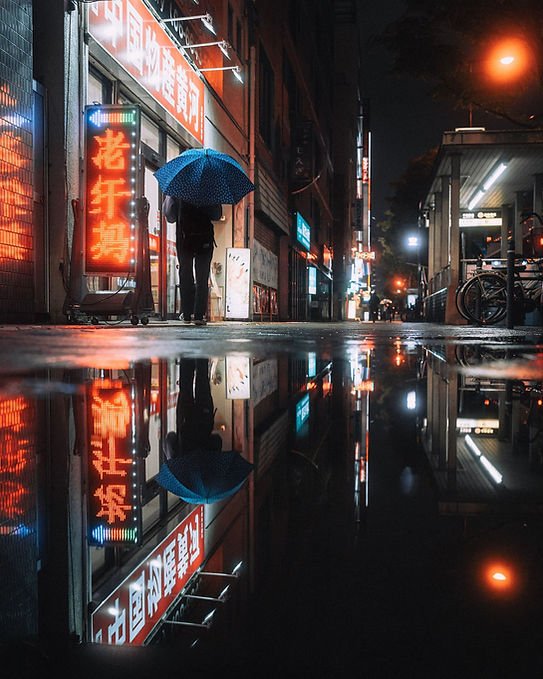
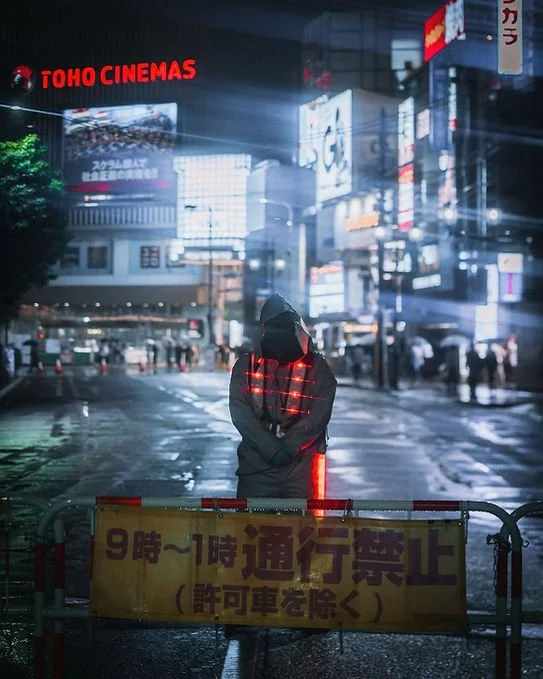
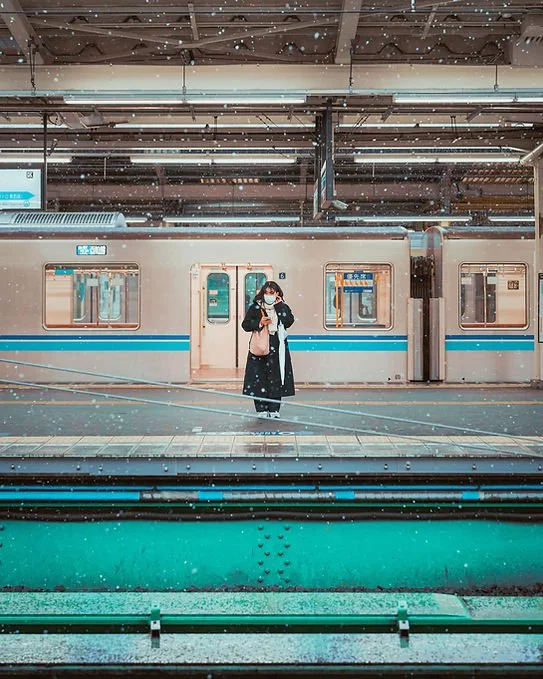
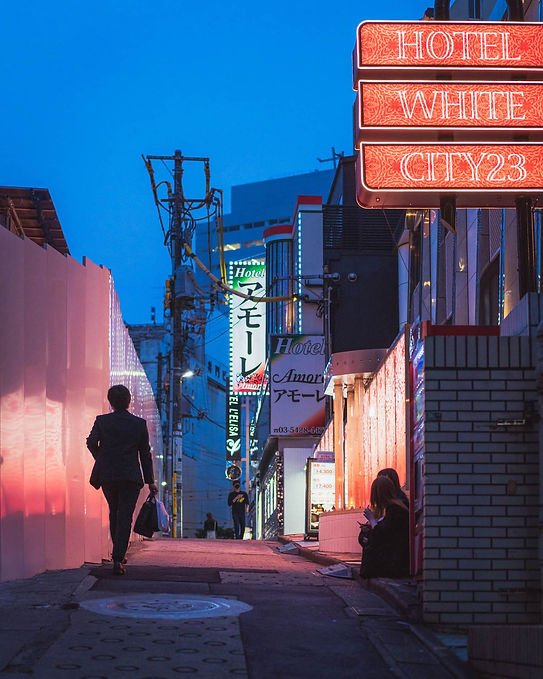
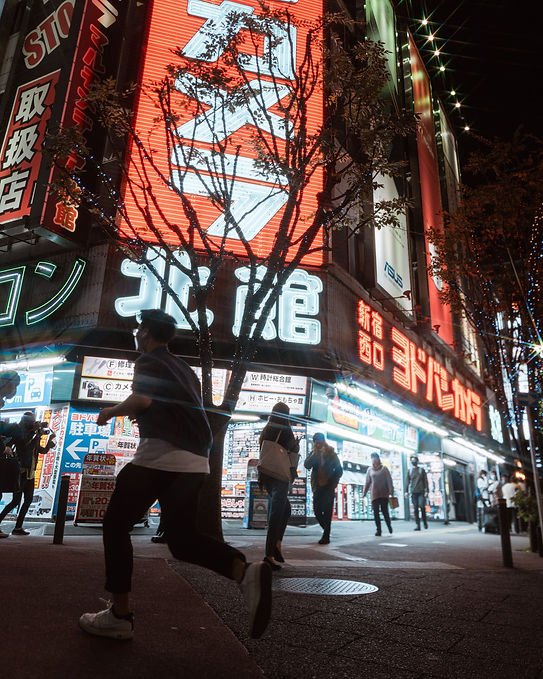
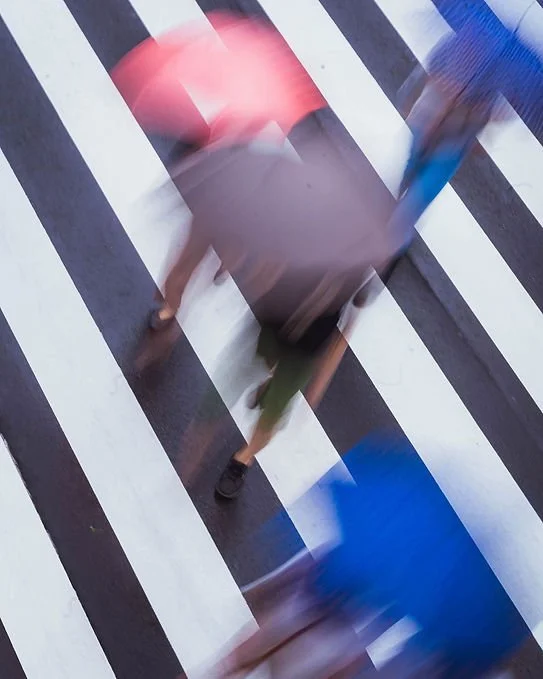
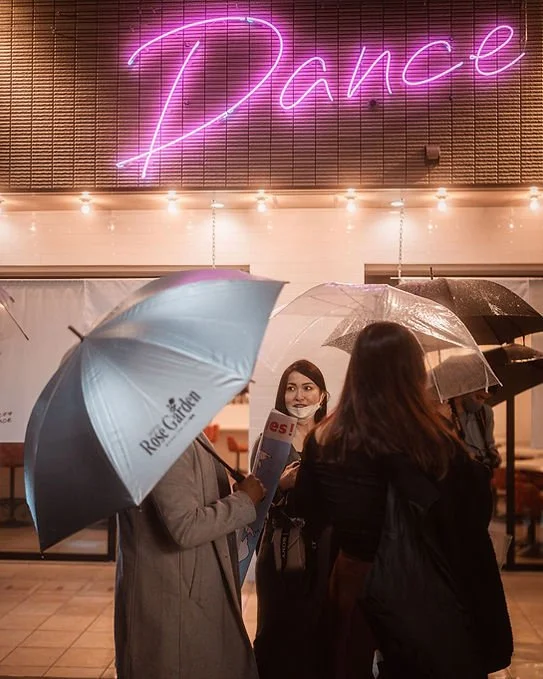
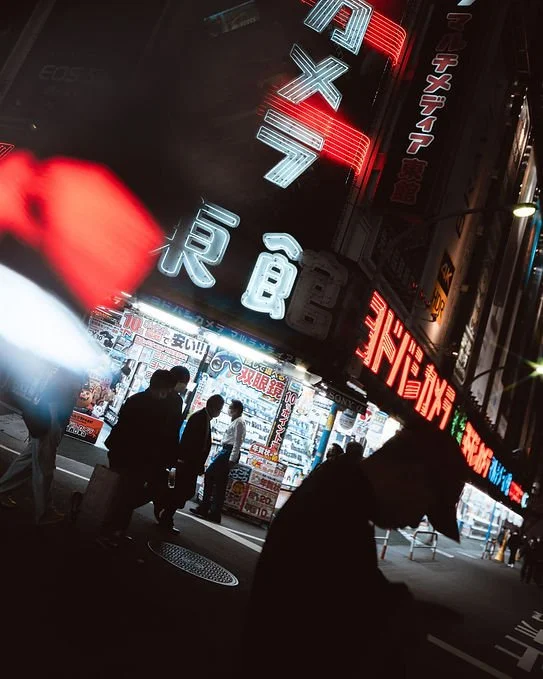
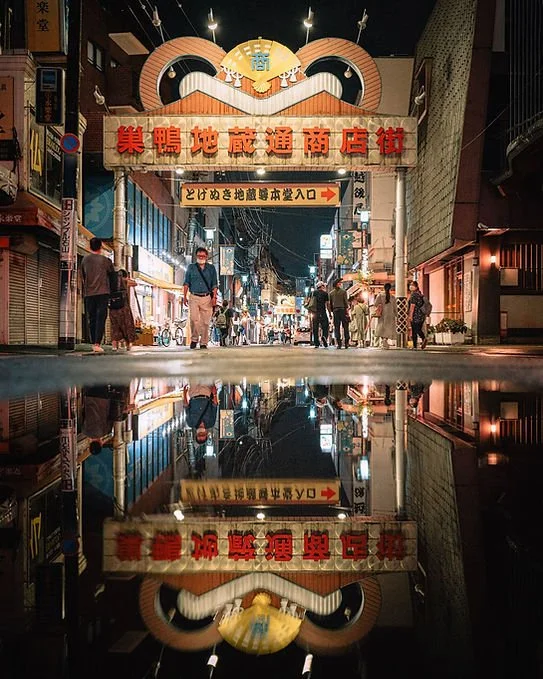
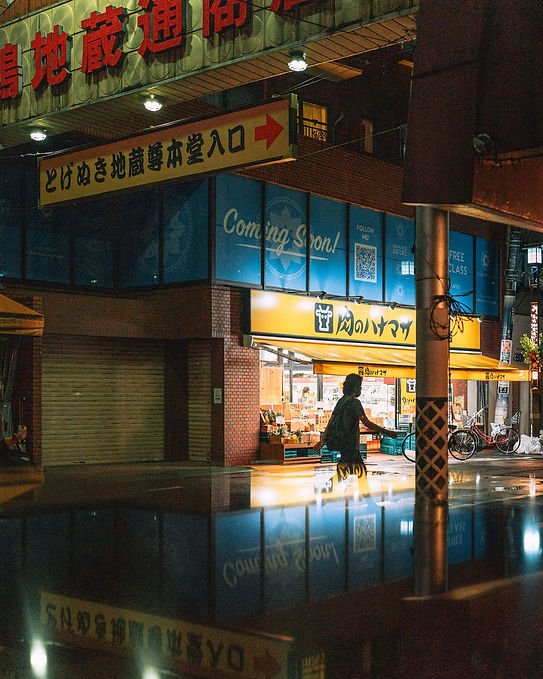
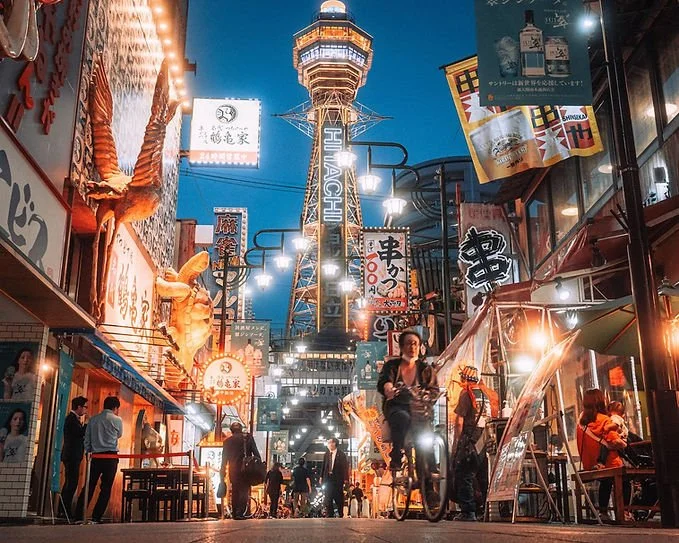
 Image 1 of 17
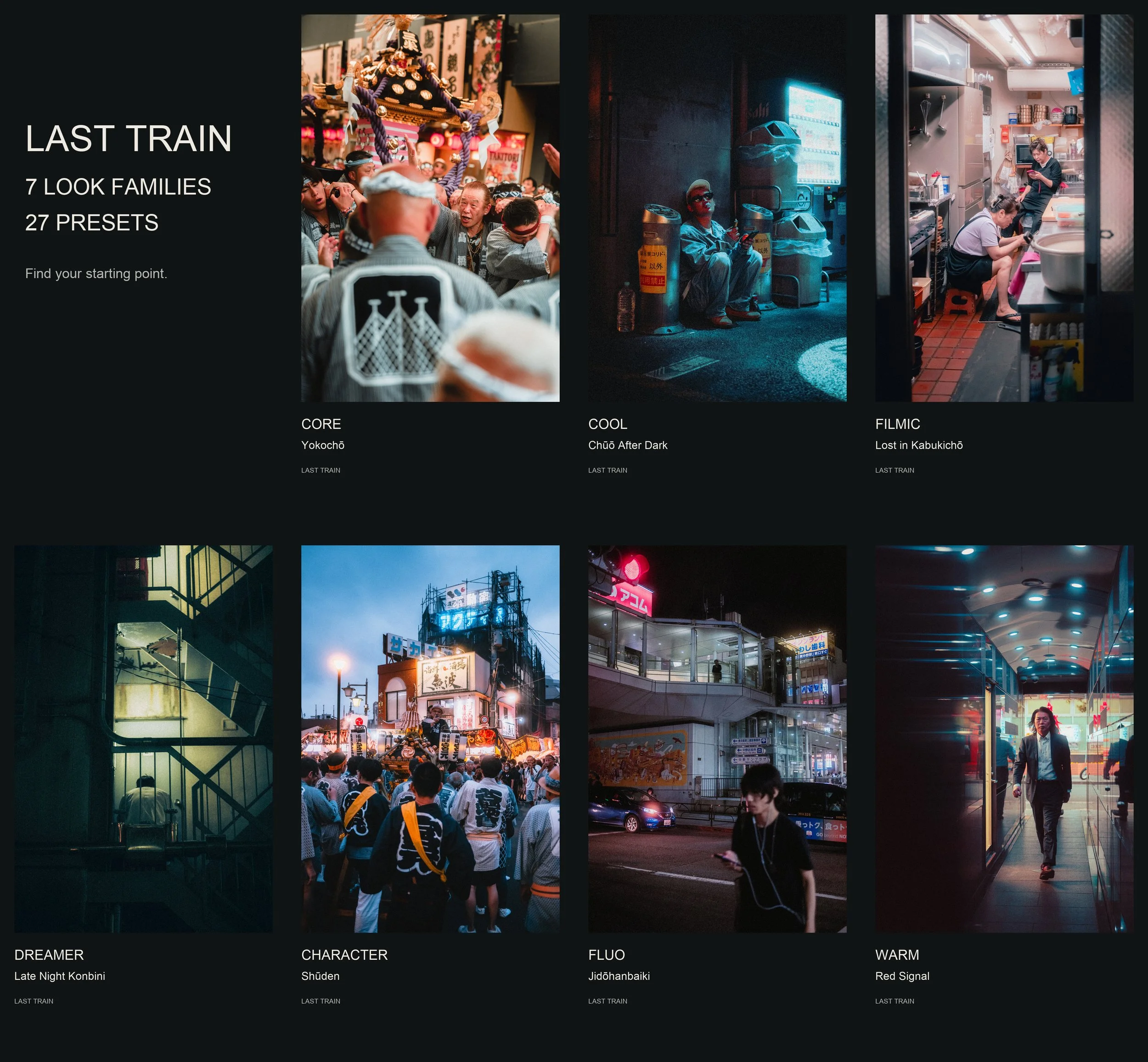 Image 2 of 17
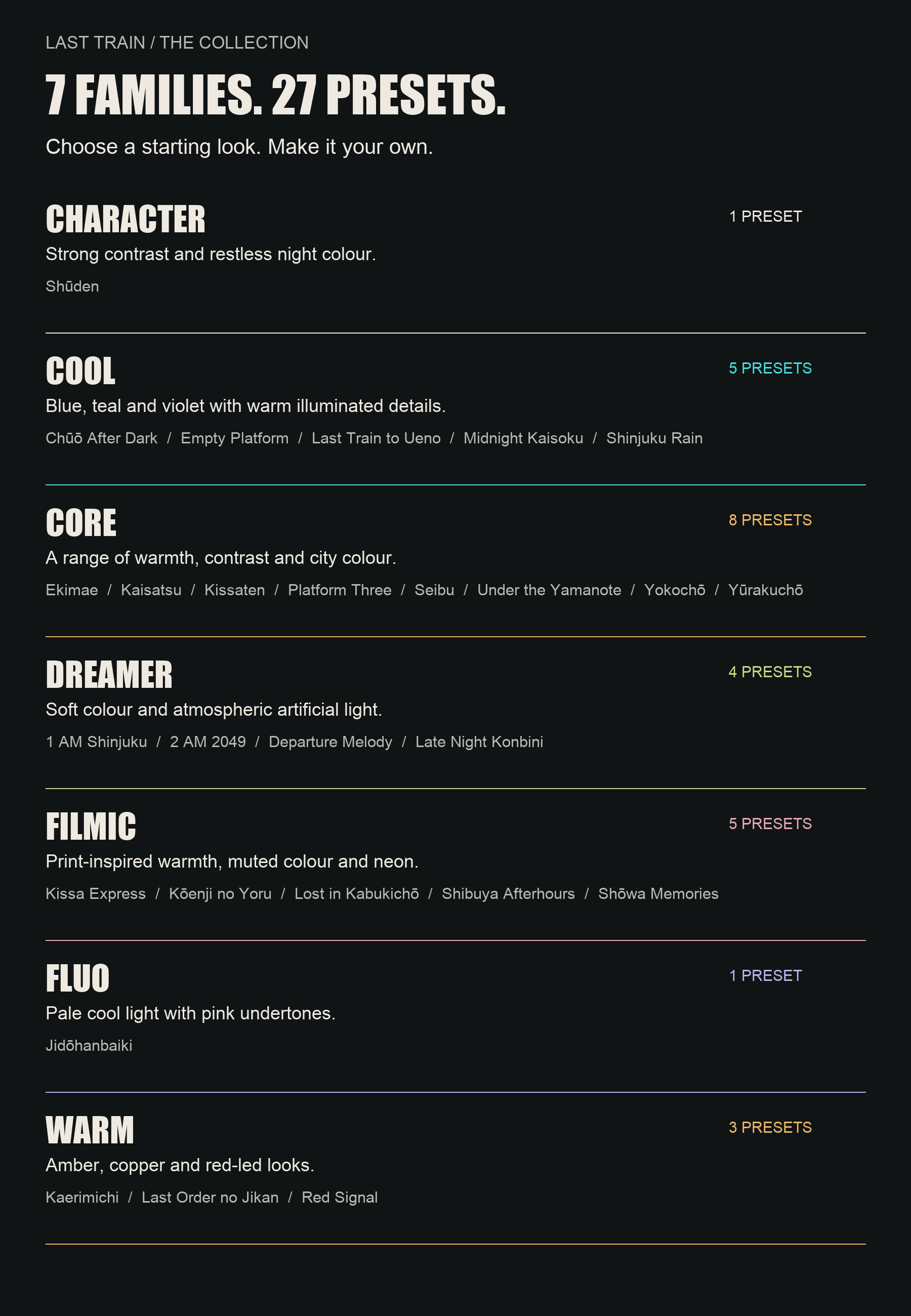 Image 3 of 17
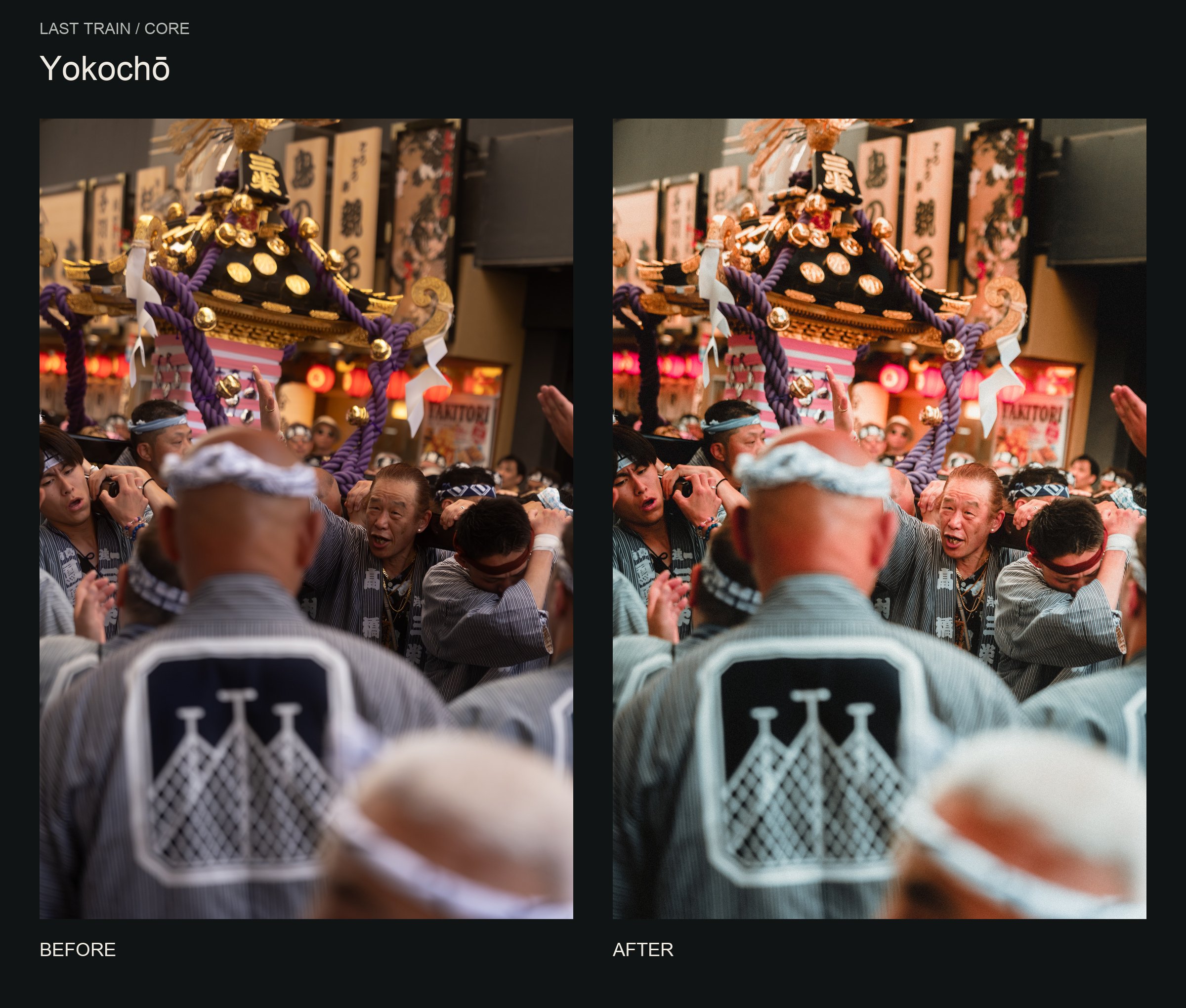 Image 4 of 17
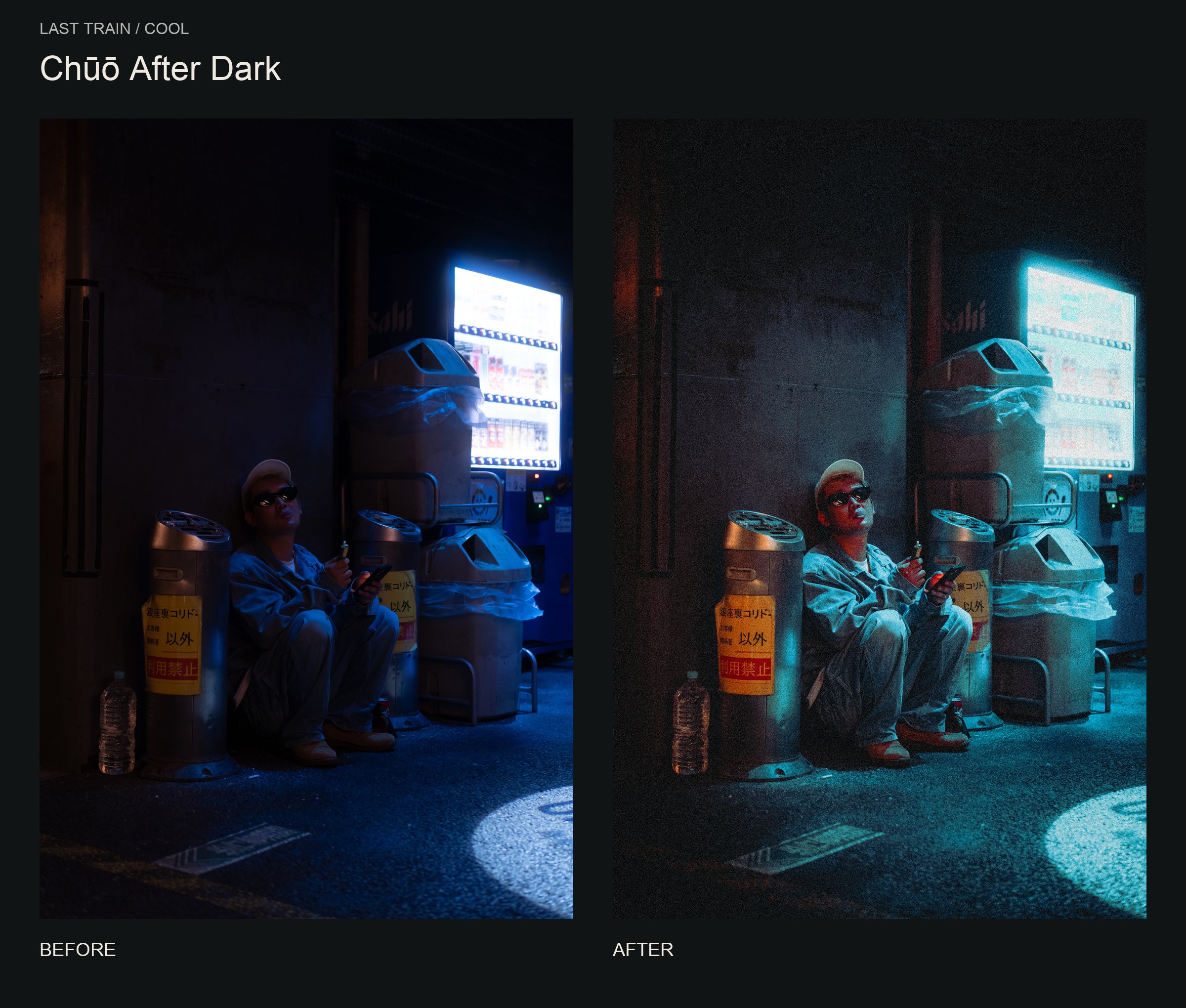 Image 5 of 17
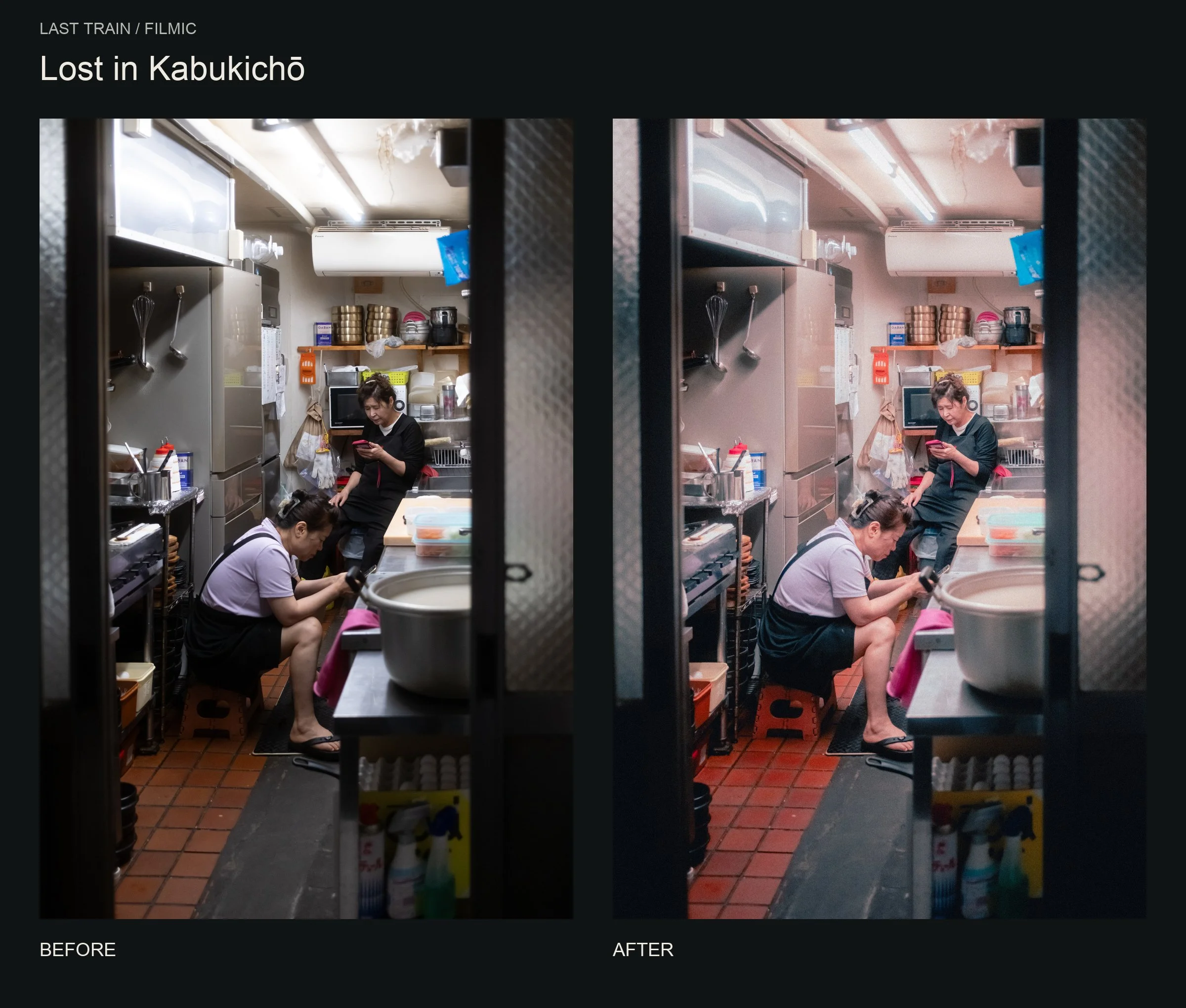 Image 6 of 17
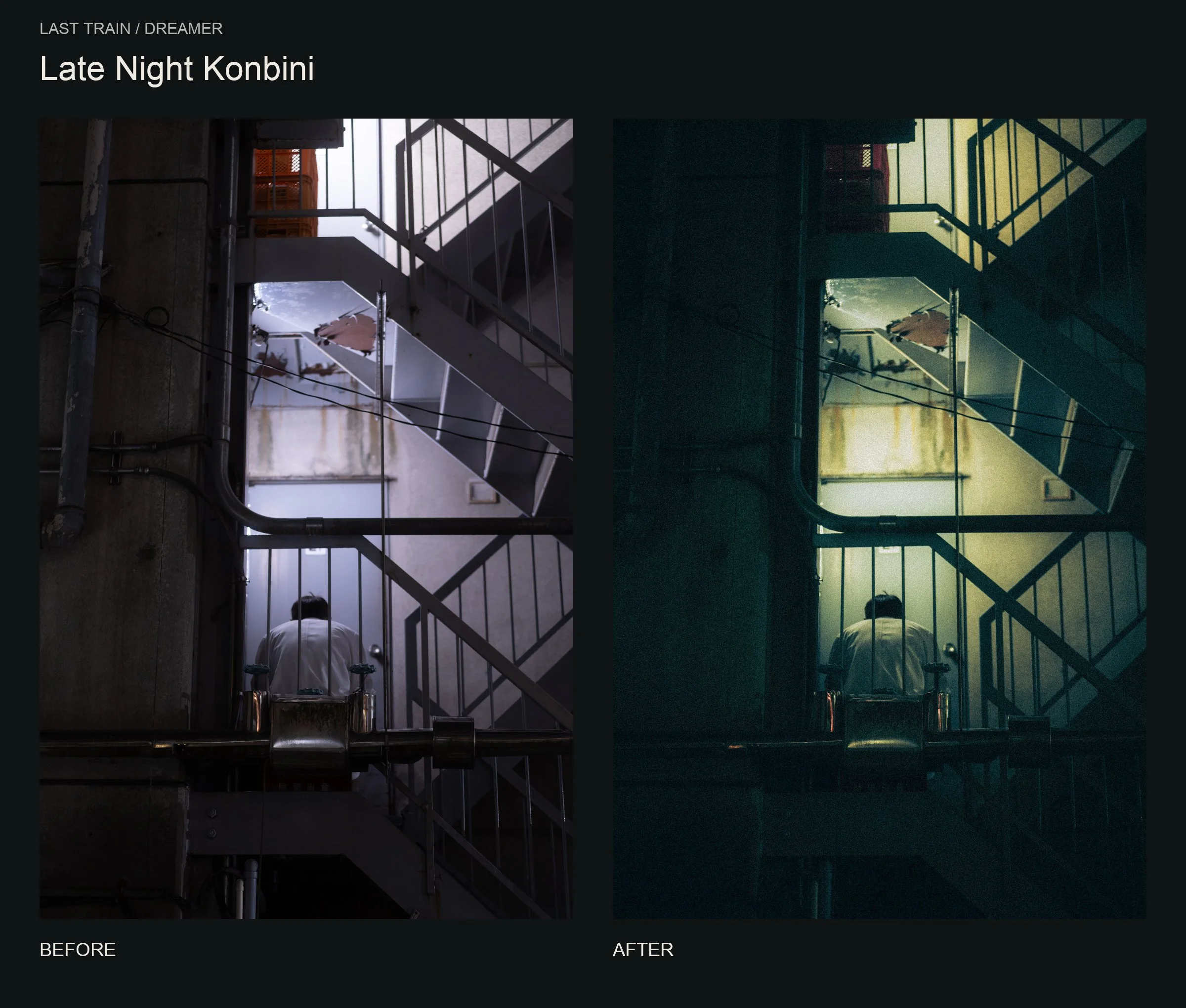 Image 7 of 17
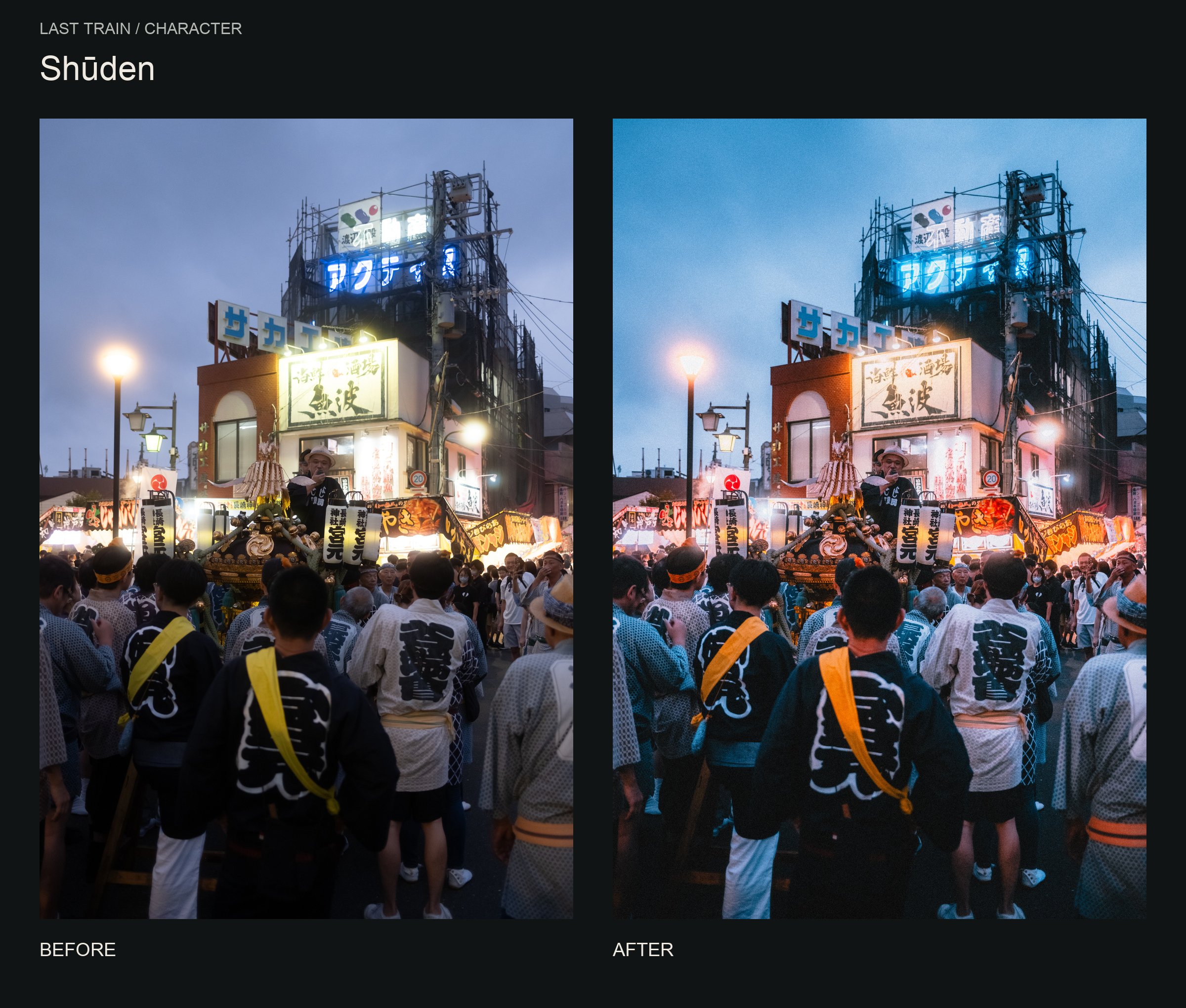 Image 8 of 17
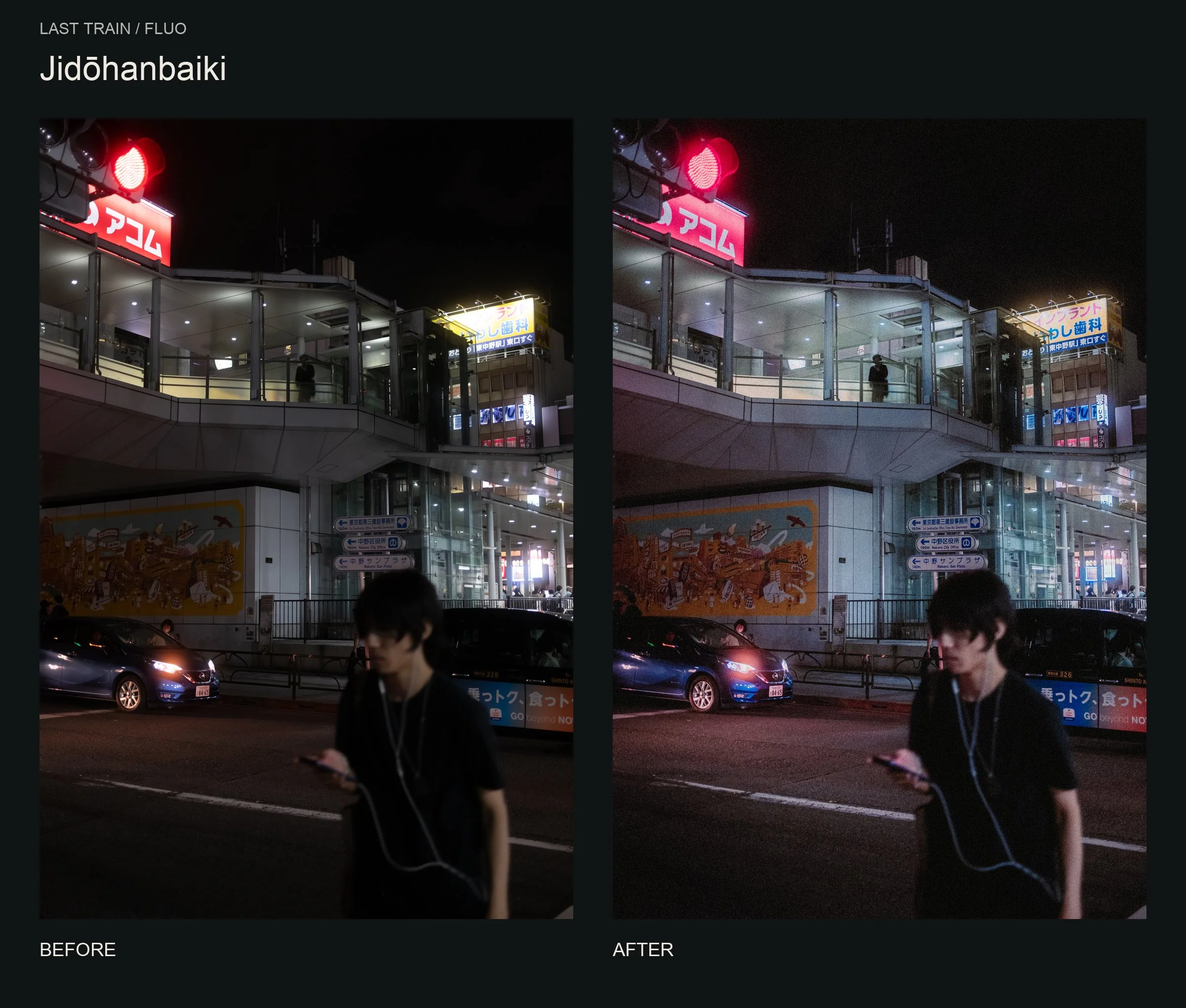 Image 9 of 17
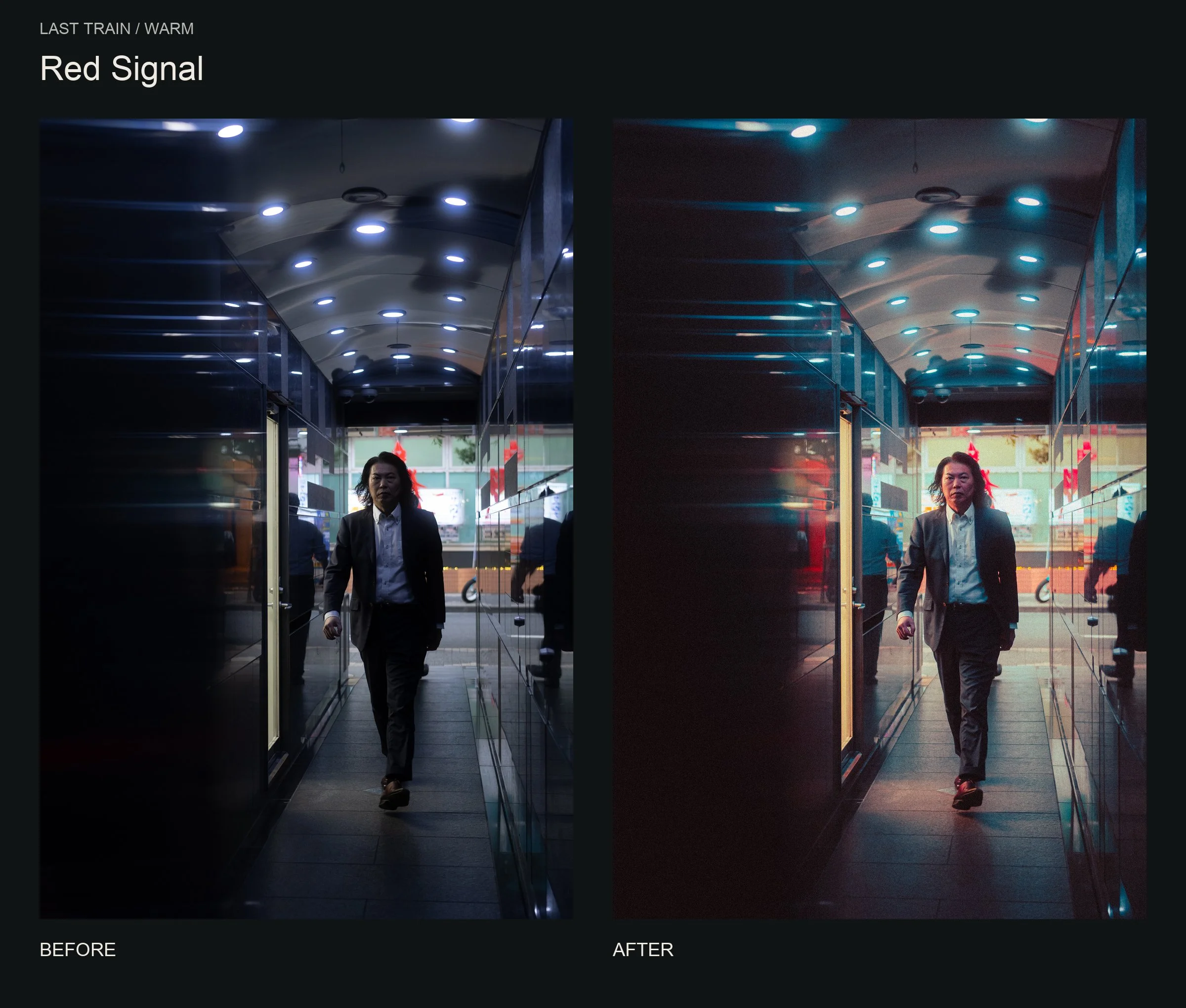 Image 10 of 17
 Image 11 of 17
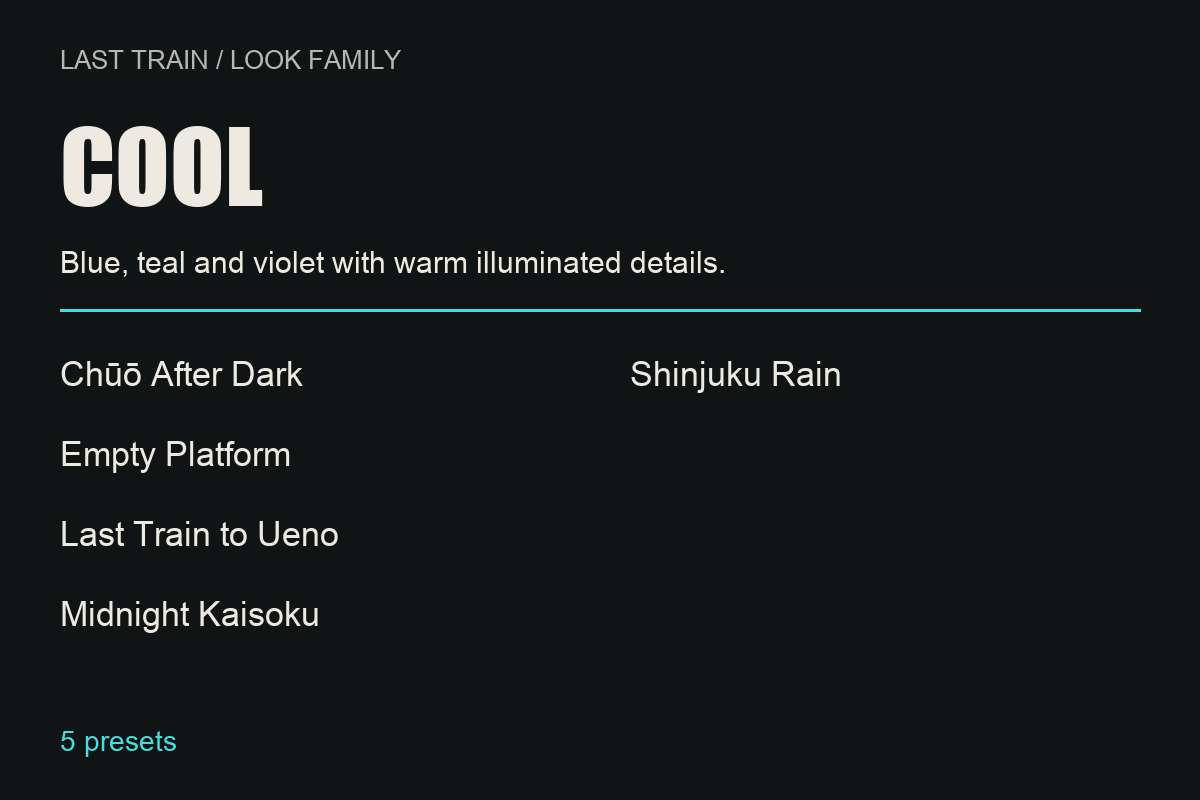 Image 12 of 17
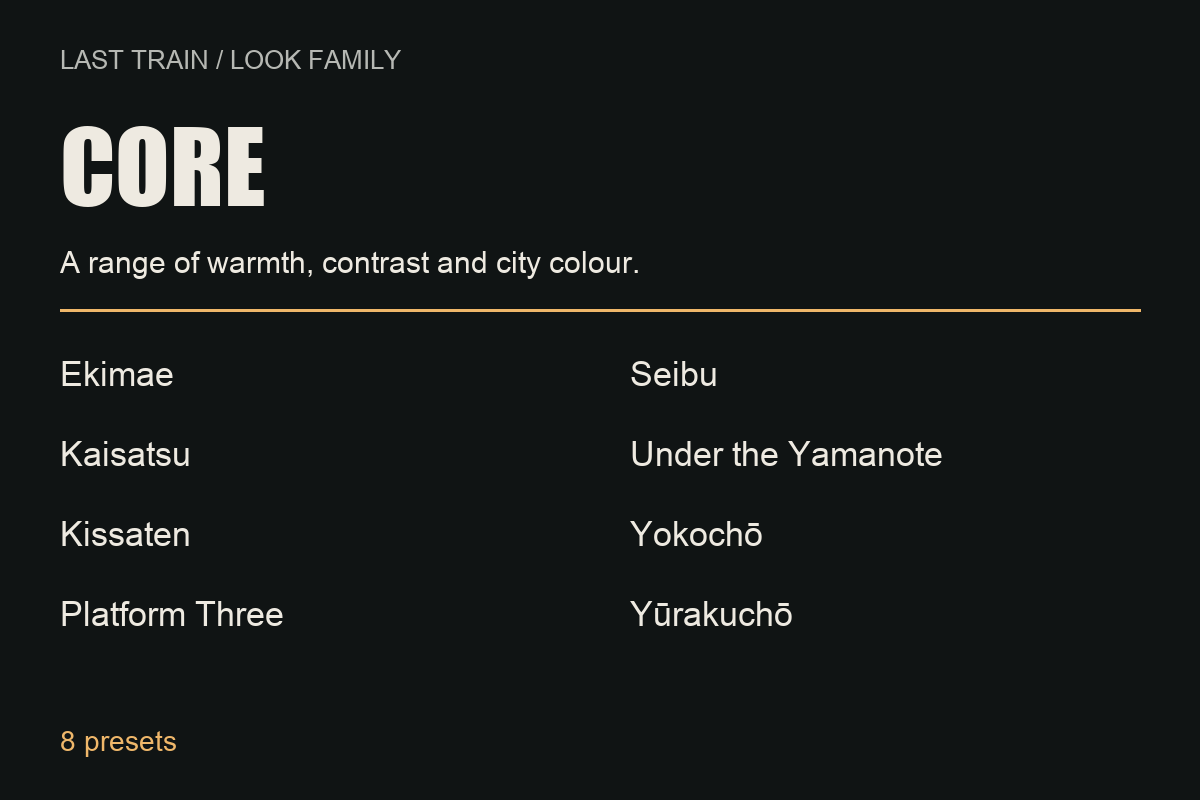 Image 13 of 17
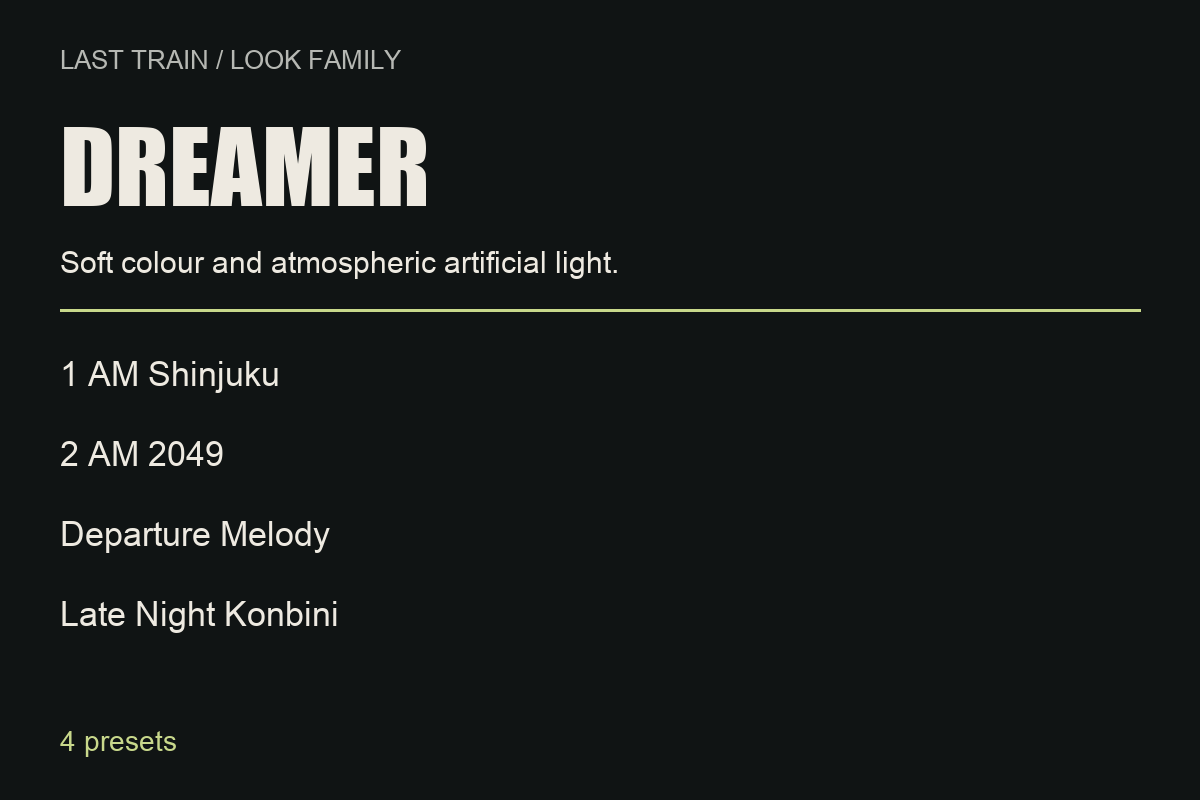 Image 14 of 17
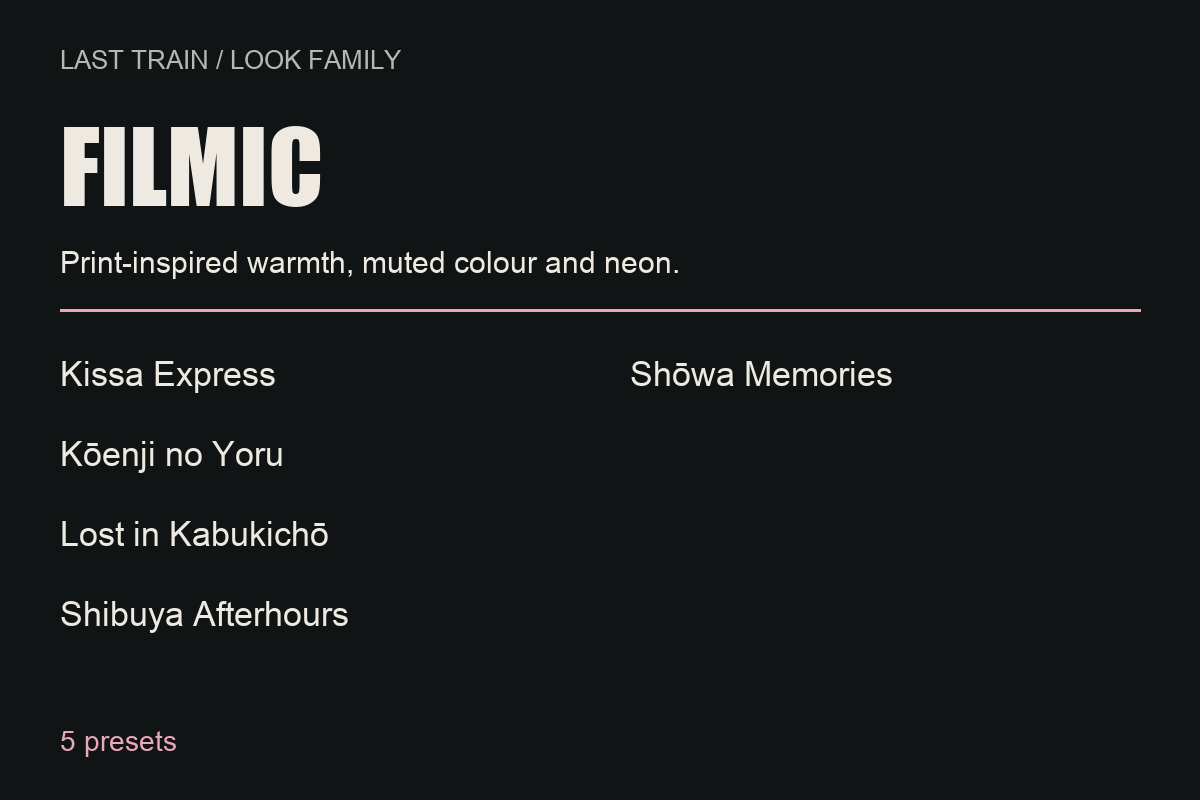 Image 15 of 17
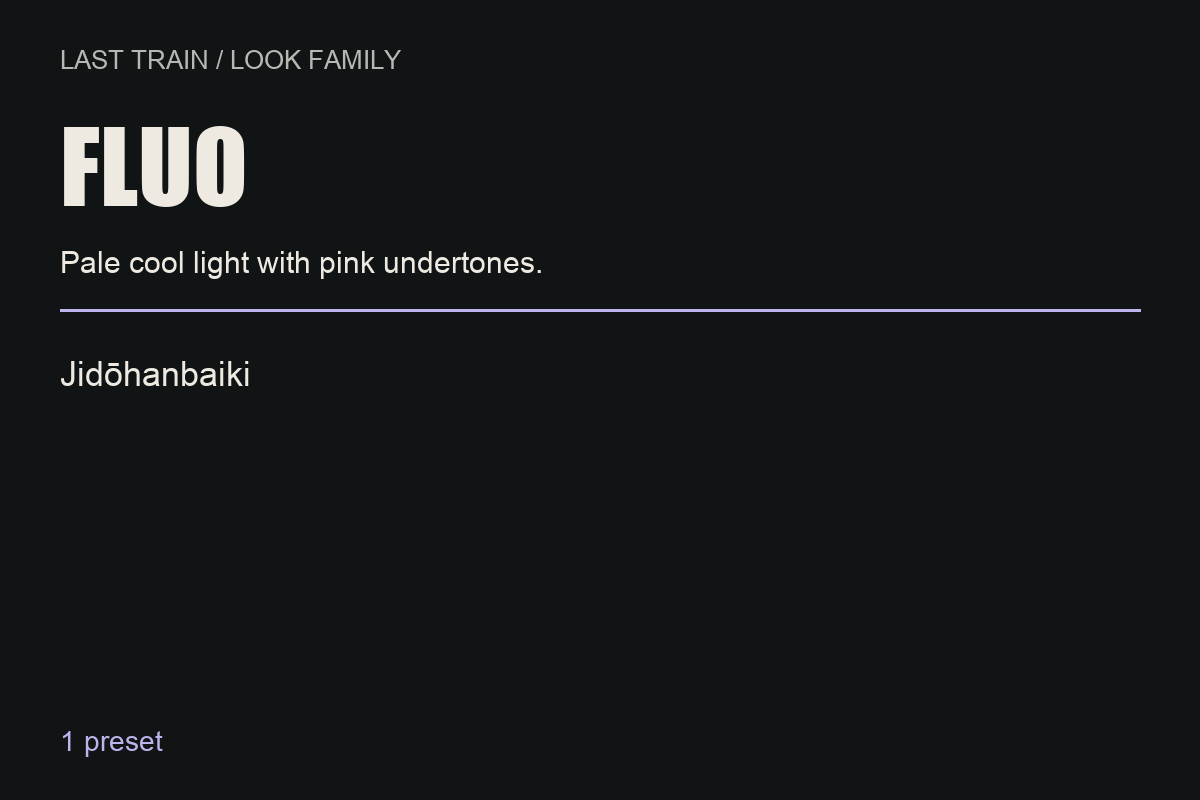 Image 16 of 17
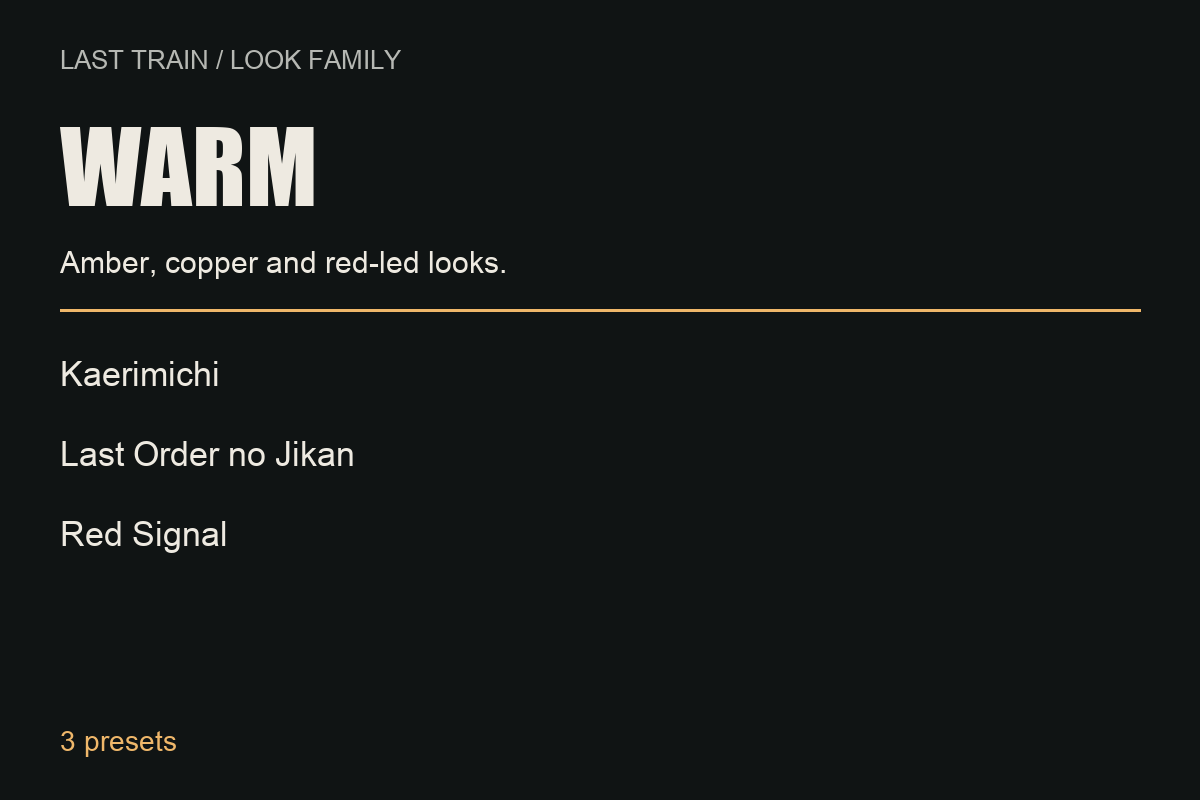 Image 17 of 17
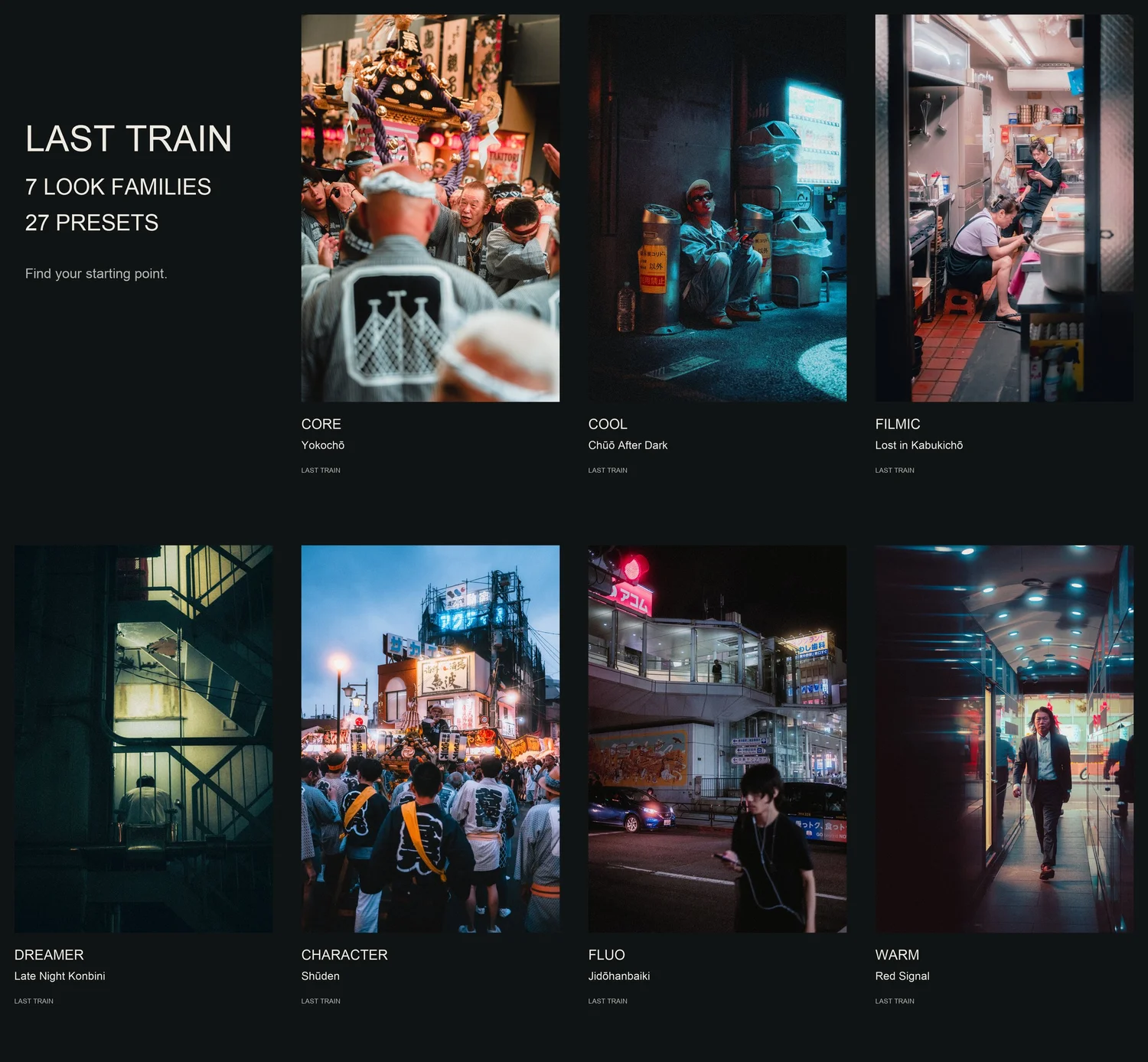
Find your LAST TRAIN look.
Seven families, from subtle shifts to something a little more experimental.
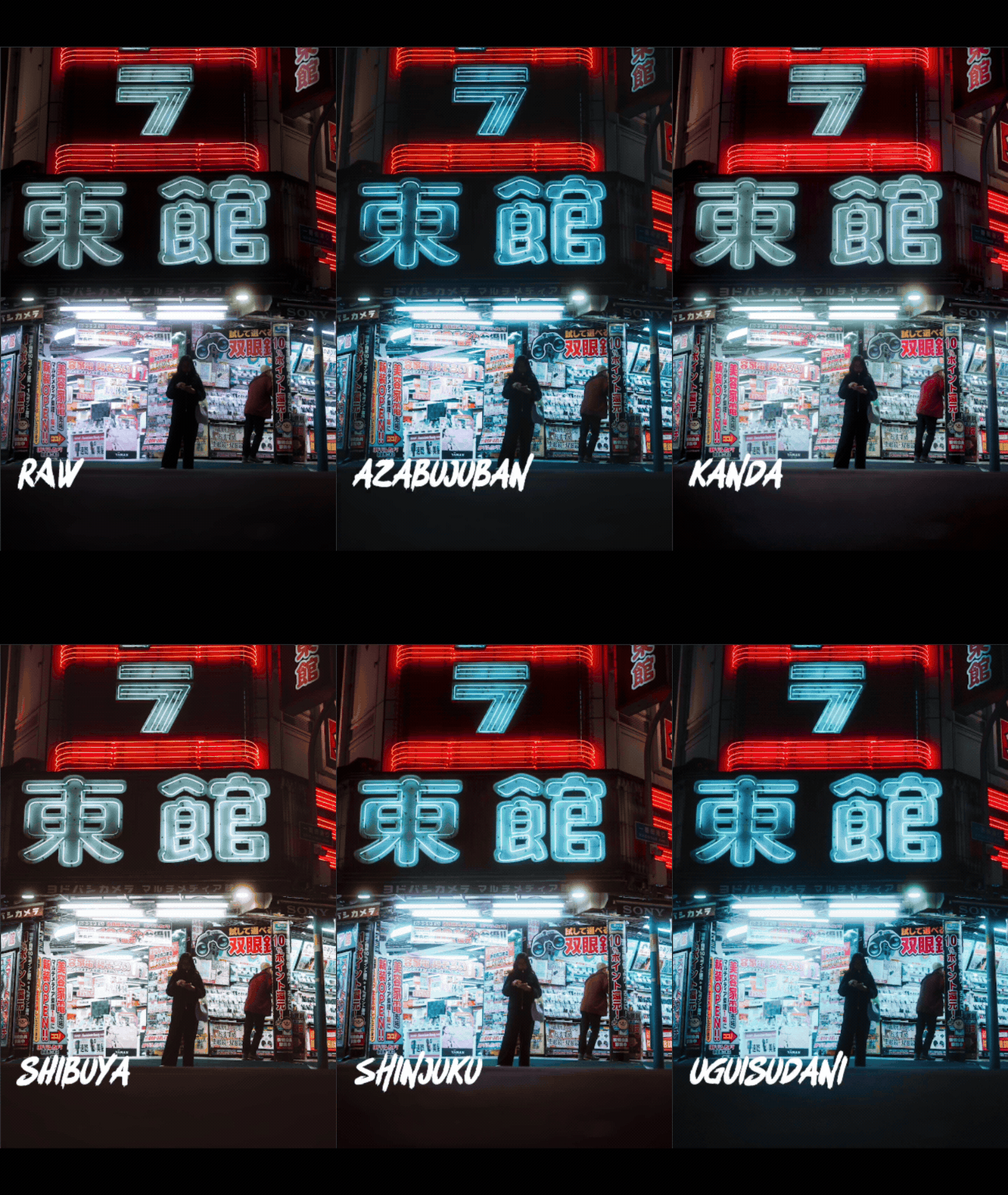
Choose a look, then drag to compare.
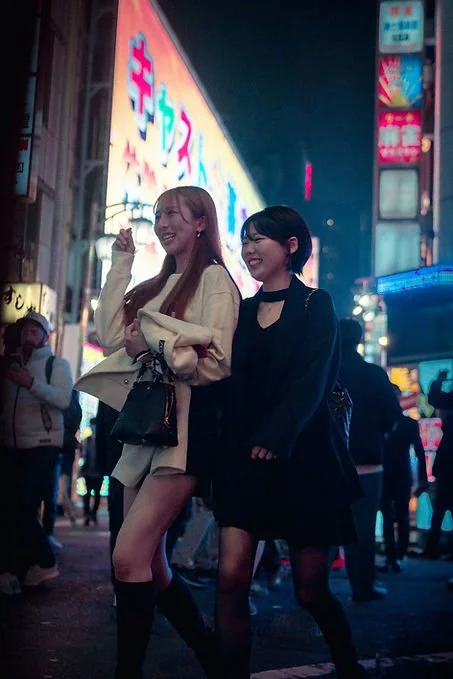
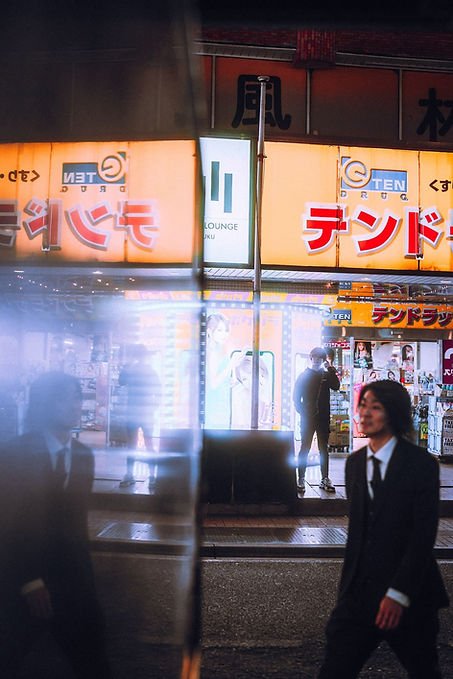
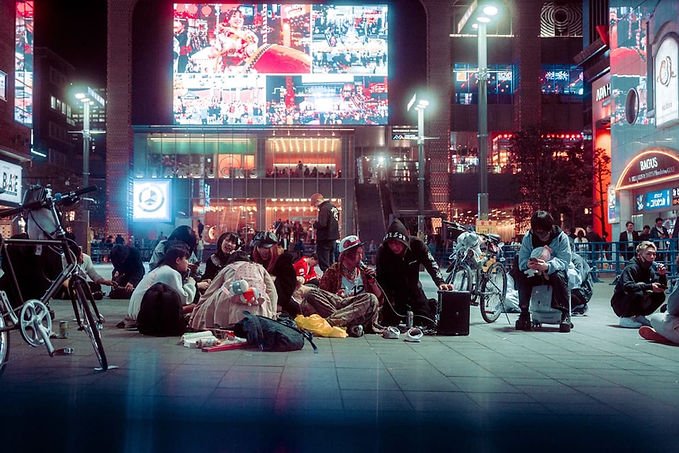
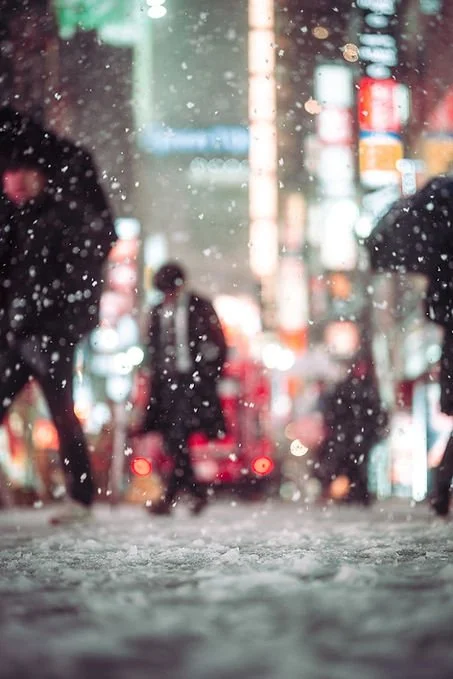
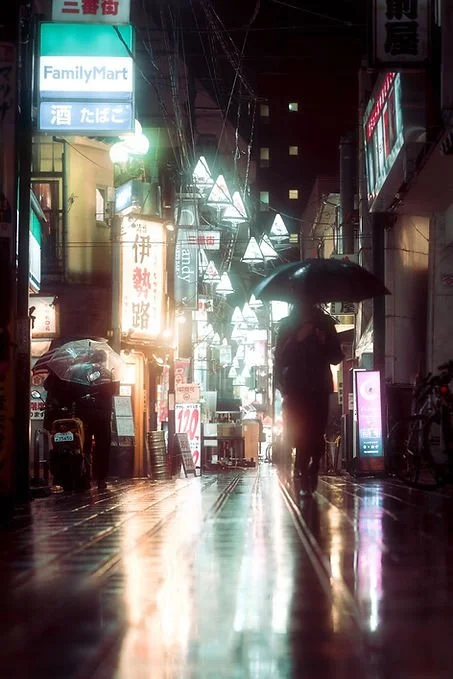
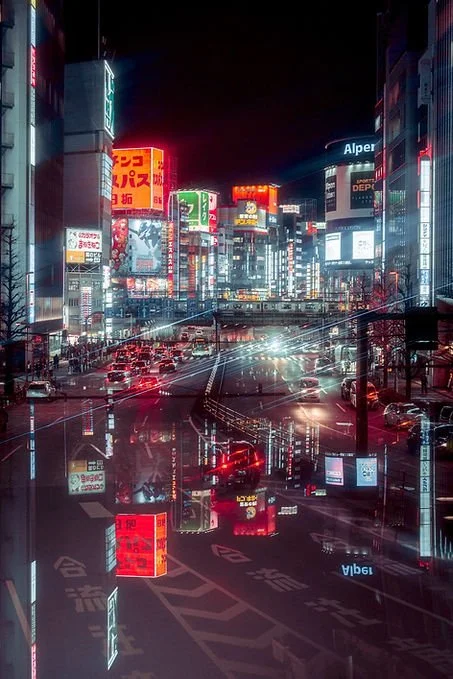
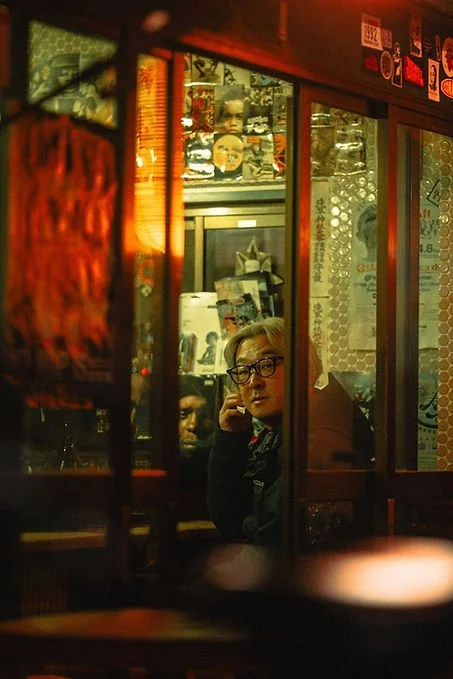
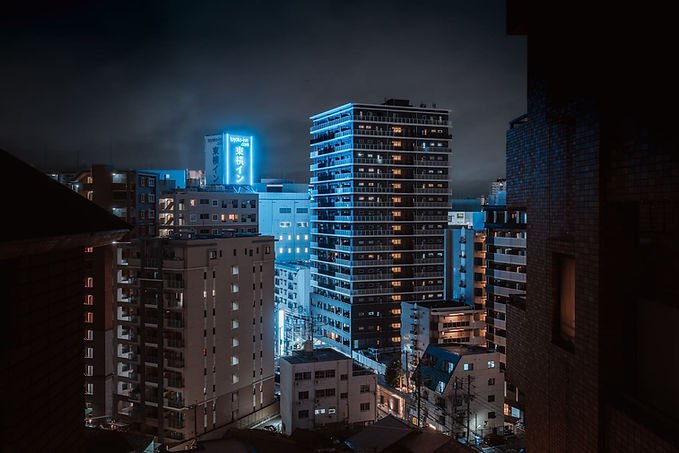
These are my finished edits, including exposure, white balance and modifier adjustments.
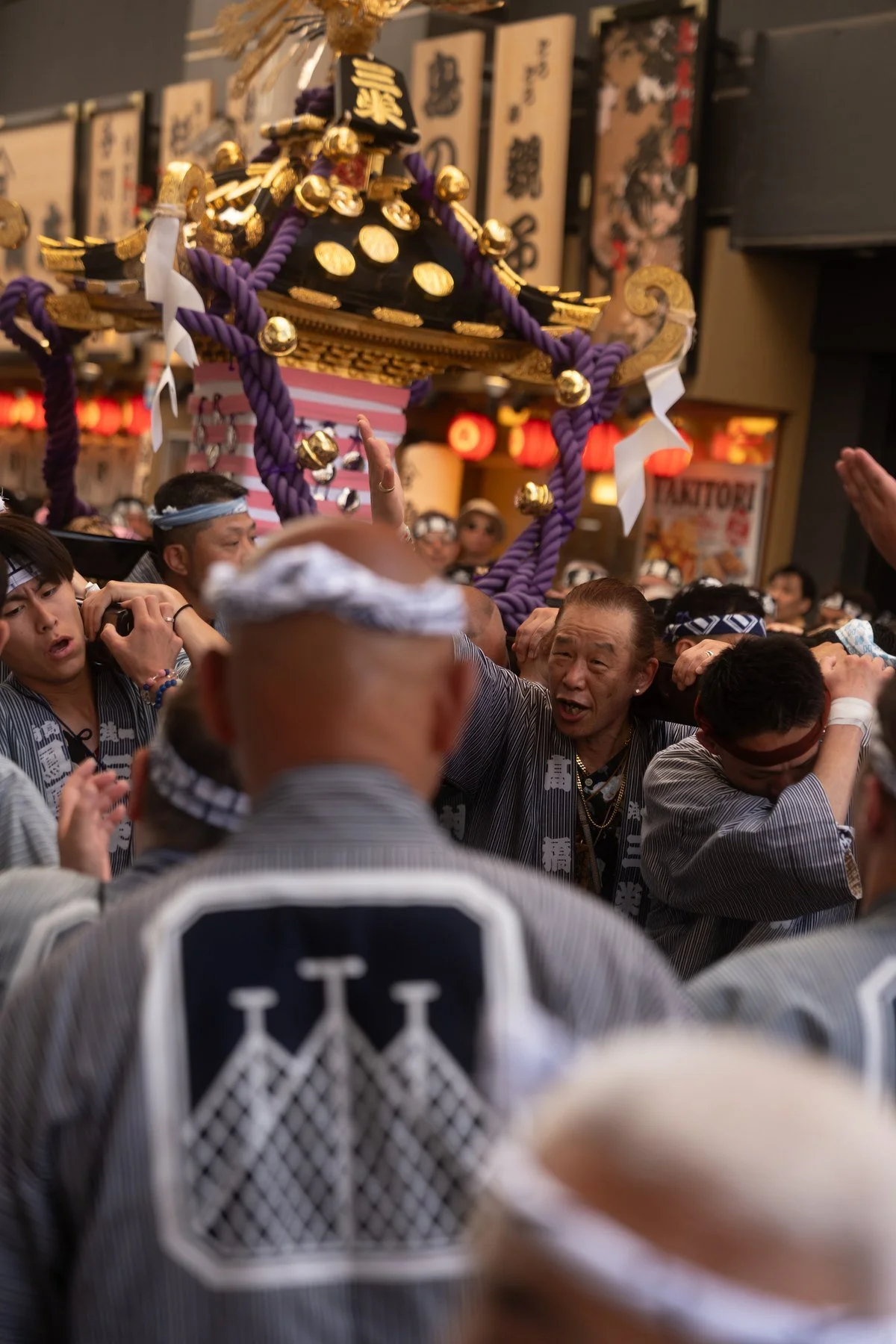
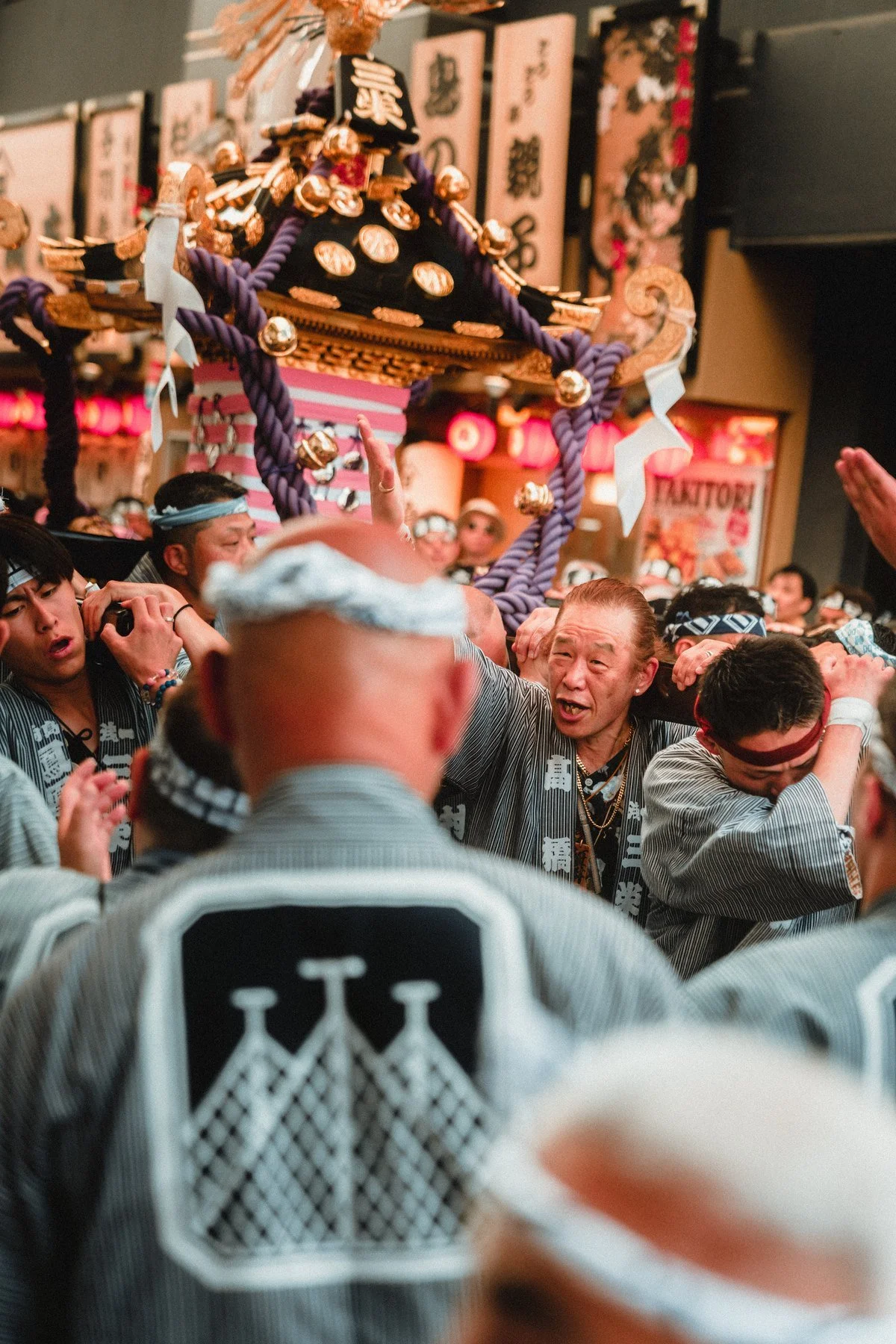 BEFOREAFTER
Built around feeling.
Colour has always been a huge part of my photography. It’s how I express mood and emotion—how I bring a photograph closer to what being there felt like.
Sometimes that means keeping things subtle. Sometimes it means pushing the blues, letting the reds take over, or making a warm scene feel almost too warm. I wanted LAST TRAIN to leave room for all of that.
These are the looks I’ve been using on my own photographs—from crowded festivals and fluorescent stations to quiet side streets and the walk home.
Build your edit,
one step at a time.
I built this pack as a modular system, with the tools arranged in the order you can work through them. Start with a preset, adjust your exposure and white balance, then build from there: atmosphere, curves, glow, grain, light shaping, separation, shadows and finishing touches.
You can adjust the strength as you go, skip a step, or stop whenever the photo feels right. The masking tools each create their own adjustable mask, so you can fine-tune individual effects and decide exactly where they belong in your image.
That flexibility matters to me. I want a starting point that helps me find the feeling in a photograph, with enough control to take it somewhere of my own.

Inside LAST TRAIN
27 presets
Seven families to explore: Core, Cool, Filmic, Dreamer, Character, Fluo and Warm.
42 modifiers
Eight tool groups to shape your edit, plus Background Bloom Reset.
Preset + Tool Guides
Guides to help you get to know the presets and build your edit with the tools.
Compatibility & installation
Built for a desktop workflow in Adobe Lightroom Classic. Use the latest version for the masking tools, and keep Lightroom up to date. Adobe Lightroom is purchased separately.
How do I install the pack?
- Unzip the main download and open the Install folder.
- In Lightroom Classic, open a photo in Develop. Click + beside Presets → Import Presets.
- Select LAST TRAIN - Import into Lightroom.zip. Leave this inner ZIP zipped—it contains the looks and tools.
You’ll find LAST TRAIN and its tool groups in the Presets panel. Apply a masking tool there, then open Masks to adjust it. If Lightroom asks to update an AI mask, let it finish and check the selection.
The download includes a START HERE installation file, plus the Preset Guide and Tools & Modifiers Guide in PDF and offline HTML formats.
Can I use it on mobile or an older Lightroom version?
The installation instructions cover Lightroom Classic on desktop. The full LAST TRAIN workflow has not been verified on Lightroom mobile, Lightroom (cloud-based), or older versions, so equivalent behaviour across those apps isn’t guaranteed.
Adobe supports syncing presets from Lightroom (cloud-based) on desktop to mobile; presets do not sync directly from Lightroom Classic. Mobile masking requires premium access. Adobe’s preset syncing guide.
I’ve put a lot of work into these, testing and refining them across thousands of my own images. I hope you’ll love using them as much as I do.
By Deniz Demir.